How to Convert SlideShare to PDF Free (2026 Complete Guide)
SlideShare remains one of the largest libraries of presentations on the web, offering everything from university lectures and research papers to business strategies and marketing decks. While viewing these presentations is often free, downloading them as a PDF isn’t always straightforward. In many cases, the built-in download option is unavailable or requires a Scribd subscription.
Fortunately, if a presentation is publicly accessible, you can still save it as a PDF in just a few minutes. This guide explains the fastest way to convert SlideShare to PDF, compares alternative methods, and answers the most common questions about downloading presentations on desktop and mobile devices.
Whether you’re a student saving lecture notes, a professional collecting reference material, or a researcher building an offline library, this guide will help you choose the right solution.
The Fastest Way to Convert SlideShare to PDF
If you’re short on time, here’s the quickest method.
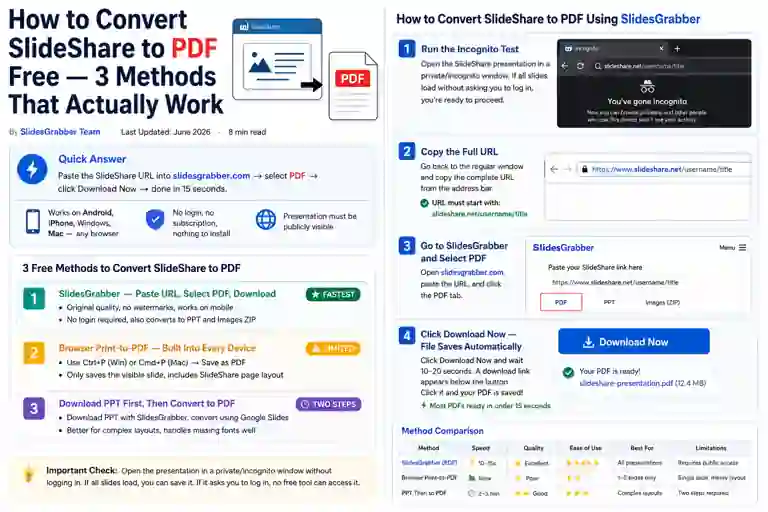
Copy the SlideShare presentation URL, paste it into SlidesGrabber, choose PDF as the output format, and click Download Now. Most public presentations are converted in less than 15 seconds, with no registration, software installation, or paid subscription required.
Quick Steps
- Open the SlideShare presentation.
- Copy the presentation URL.
- Paste it into slidesgrabber.com.
- Click Fetch Slides.
- Select Download PDF.
- Save the presentation to your device.
The process works on:
- Windows
- macOS
- Android
- iPhone
- Chrome
- Safari
- Edge
- Firefox
Before downloading, open the SlideShare presentation in a private or incognito browser window. If every slide loads without asking you to sign in, the presentation is publicly accessible and can usually be converted successfully.
Before You Convert: Check Whether the Presentation Is Public
One of the most common reasons SlideShare downloads fail has nothing to do with the converter; it’s because the presentation itself isn’t publicly accessible.
Before trying to download a presentation, take a few seconds to check whether it’s available without signing in.
You can usually convert a presentation if:
- All slides load without a login prompt.
- The presentation can be viewed in an incognito or private browser window.
- The URL opens directly from SlideShare without requesting additional permissions.
You won’t be able to convert it if:
- The presentation has been marked as private by the author.
- SlideShare asks you to log in before displaying the slides.
- The content has been removed or is no longer publicly available.
Checking this first can save time and prevent unnecessary troubleshooting later.
Which Download Method Should You Choose?
There are several ways to save a SlideShare presentation, each designed for a different purpose. Choosing the right one depends on whether you simply want to read the presentation, edit the slides, or save a single page.
| Your Goal | Recommended Method |
|---|---|
| Download the complete presentation as PDF | SlideShareDownloaderFree |
| Edit the presentation | Download as PPT |
| Save a single slide | Browser Print to PDF |
| Read presentations offline | PDF Download |
| Print presentation handouts | PDF Download |
For most users, downloading directly as a PDF provides the fastest workflow while preserving the original layout and making the presentation easy to read on any device.
Method 1: Download SlideShare as PDF Online (Recommended)
If your goal is to save an entire SlideShare presentation quickly and without losing quality, using an online converter is the most reliable option.
Unlike browser printing, which only captures what’s displayed on your screen, a dedicated SlideShare downloader processes the complete presentation and creates a clean PDF that preserves the original formatting, images, and text.
Because everything happens online, there’s no software to install and no need to create an account before downloading.
Step 1: Copy the Presentation URL
Open the SlideShare presentation you want to save and copy the full URL from your browser’s address bar.
For the best results, use the original SlideShare link instead of a shortened or shared URL from social media.
Step 2: Paste the URL into the Converter
Visit SlideShare Downloader Free and paste the copied URL into the search box.
Click Fetch Slides to load the presentation.
The tool will automatically retrieve the slides and generate a preview before the download begins.
Step 3: Choose PDF
Once the presentation has loaded, select Download PDF.
If you need an editable version instead, you can choose PowerPoint (PPT) and convert it later using presentation software.
Step 4: Download Your Presentation
Click Download PDF and wait while the file is generated.
Most presentations are processed in less than 30 seconds, although larger files with many slides may take slightly longer.
Once complete, the PDF is downloaded directly to your device and is ready for offline viewing, printing, or sharing.
Why This Is Our Recommended Method
After comparing several approaches, downloading directly as a PDF consistently delivers the best balance of speed, quality, and simplicity. The converted file preserves slide layouts, images, and text while remaining searchable and easy to open across different devices.
Because the process runs entirely in your browser, you can convert presentations from almost any operating system without installing additional software. Whether you’re working from a desktop computer or downloading lecture notes on your phone, the experience remains fast and straightforward.
Convert SlideShare to PDF on Any Device
One of the biggest advantages of using SlideShareDownloaderFree is that it works directly in your browser, so you don’t need to install an app or use different tools for different devices. Whether you’re working from a desktop computer or downloading presentations on your phone, the process remains almost identical.
How to Convert SlideShare to PDF on Windows
Windows users can convert SlideShare presentations using any modern browser, including Chrome, Edge, or Firefox.
- Open the SlideShare presentation you want to download.
- Copy the presentation URL from your browser’s address bar.
- Visit SlideShareDownloaderFree.
- Paste the URL into the search box and click Fetch Slides.
- Select Download PDF.
- The PDF will automatically download to your Downloads folder.
No software installation or Microsoft Office is required.
How to Convert SlideShare to PDF on Mac
Mac users can follow the same process using Safari, Chrome, or Firefox.
- Open the SlideShare presentation.
- Copy the complete presentation URL.
- Open Slideshare Downloader Free in your browser.
- Paste the URL and click Fetch Slides.
- Choose Download PDF.
- Save the file to your preferred folder or iCloud Drive.
The downloaded PDF opens in Preview by default, making it easy to read, annotate, or print without additional software.
How to Convert SlideShare to PDF on Android
If you’re using an Android phone or tablet, you can convert presentations directly from Chrome or any other mobile browser.
- Open the SlideShare presentation in your browser.
- Tap the address bar and copy the presentation URL.
- Visit SlideShare Downloader Free.
- Paste the URL into the converter.
- Tap Fetch Slides.
- Select Download PDF.
- The presentation will be saved to your device’s Downloads folder.
This method works well for students and professionals who need to access presentations while travelling or studying offline.
How to Convert SlideShare to PDF on iPhone
iPhone users can download SlideShare presentations using Safari or Chrome without installing additional apps.
- Open the SlideShare presentation.
- Copy the presentation URL.
- Visit SlideShareDownloaderFree.
- Paste the URL and tap Fetch Slides.
- Select Download PDF.
- If the PDF opens in Safari instead of downloading automatically, tap the Share icon and choose Save to Files.
The presentation will then be available in the Files app for offline access.
PDF vs PPT: Which Format Should You Choose?
Both PDF and PowerPoint formats have their advantages, and the right choice depends on how you plan to use the presentation.
Choose PDF if you want to:
- Read presentations offline.
- Print slides or handouts.
- Share files without formatting changes.
- Archive presentations for future reference.
- Open presentations on any device.
Choose PowerPoint (PPT) if you want to:
- Edit slide content.
- Replace images or text.
- Reuse presentation templates.
- Create a new presentation from existing slides.
If you’re only interested in viewing or sharing the presentation, a PDF is usually the better option because it preserves the original design and works on virtually every device.
Why Downloads Sometimes Don’t Work
If your SlideShare presentation doesn’t download successfully, the issue is often related to the presentation itself rather than the converter.
Here are the most common reasons.
The Presentation Is Private
Only publicly accessible SlideShare presentations can be converted. If the presentation requires a login or has been marked as private, no online converter can access it.
Incorrect URL
Always copy the URL directly from your browser’s address bar. Links copied from search results, social media, or embedded websites may not work correctly.
Large Presentations
Presentations with more than 100 slides or many high-resolution images may take longer to process. Wait a minute before refreshing the page.
Slow Internet Connection
A poor connection can interrupt the conversion process. Refresh the page and try again using a stable network.
Browser Cache Issues
If the converter doesn’t load properly, clear your browser cache or open the website in an incognito window before trying again.
Is It Safe to Use a SlideShare Downloader?
Security is an important consideration whenever you’re using an online file converter.
SlideShareDownloaderFree processes publicly accessible presentation URLs directly in your browser and doesn’t require software installation or account registration. Because no application is installed on your device, there’s nothing to uninstall afterward.
As with any online tool, remember that downloading a presentation doesn’t transfer ownership of the content. Presentations remain the intellectual property of their original creators and should only be used in accordance with applicable copyright laws and the author’s permissions.
Frequently Asked Questions
Can I convert SlideShare to PDF without a Scribd subscription?
Yes. If the SlideShare presentation is publicly accessible, you can convert it to PDF without purchasing a Scribd subscription. Simply copy the presentation URL, paste it into SlideShareDownloaderFree, and download the PDF in a few clicks.
Do I need a SlideShare or LinkedIn account?
No. Our converter works with publicly available SlideShare presentation URLs and doesn’t require you to sign in with LinkedIn or create an account before downloading.
Can I convert private SlideShare presentations?
No. Private or restricted presentations cannot be downloaded because they aren’t publicly accessible. Our tool only converts presentations that can already be viewed online without additional permissions.
Is Slideshare Downloader Free safe to use?
Yes. The converter runs entirely in your browser, so there’s no software to install or account to create. Simply paste your SlideShare URL, convert the presentation, and download your file.
Conclusion
Downloading SlideShare presentations shouldn’t be complicated. Whether you’re saving lecture notes, business presentations, research material, or training documents, having a PDF copy makes it easier to access your content anytime—even without an internet connection.
If you simply want the fastest and easiest solution, Free SlideShare Downloader lets you convert publicly available SlideShare presentations into high-quality PDFs in just a few clicks. The process works across Windows, Mac, Android, iPhone, and other modern devices without requiring software installation or paid subscriptions.
If you need an editable version instead, you can also download presentations as PowerPoint files and modify them using your preferred presentation software.